Why I Did This
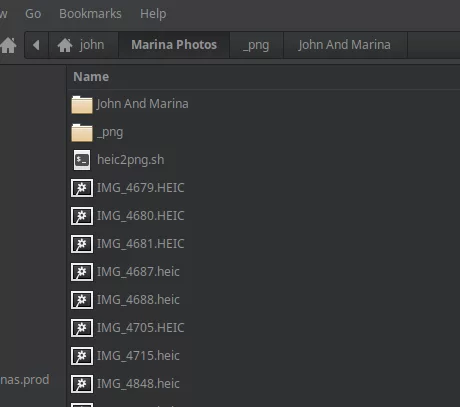
If you’re like me and use an iPhone, you’ll know that the iphone stores photos in .heic file format. While this is fine for Apple devices, it often makes it difficult to mass-export photos directly from an iPhone to other applications which can readily accept the more common .PNG image type.
A Script To Convert Image Types
Prerequisites – Linux
Run this command to install the needed imagemagick support (needed by the script) sudo apt update, then run sudo apt install -y imagemagick libheif1 libheif-examples exiftool
Prerequisites – Mac
Run this command to install the necessary dependencies brew install imagemagick libheif exiftool
This script will convert a number of .heic files to more common .png files. Simply copy it and save it on a Mac or Linux machine and run it in a directory containing .heic images. Save the script as heic2png.sh and make it executable: chmod +x heic2png.sh then run it in the directory containing your heic files ./heic2png.sh
#!/usr/bin/env bash
set -euo pipefail

# heic2png.sh  — convert HEIC/HEIF images to PNGs, recursively.
# Usage: ./heic2png.sh [SOURCE_DIR] [DEST_DIR]
# If DEST_DIR is omitted, outputs to SOURCE_DIR/_png

SRC="${1:-.}"
DEST="${2:-"$SRC/_png"}"

# Check dependencies
if ! command -v magick >/dev/null 2>&1 && ! command -v convert >/dev/null 2>&1; then
  echo "Error: ImageMagick not found (magick/convert). Install it first." >&2
  exit 1
fi
HAS_EXIFTOOL=0
if command -v exiftool >/dev/null 2>&1; then
  HAS_EXIFTOOL=1
fi

# Prefer "magick" if available (newer IM), else fall back to "convert"
IM_CMD="magick"
command -v magick >/dev/null 2>&1 || IM_CMD="convert"

# Normalize paths
SRC="$(cd "$SRC" && pwd)"
DEST="$(mkdir -p "$DEST" && cd "$DEST" && pwd)"

echo "Source: $SRC"
echo "Dest  : $DEST"
echo

# Find and convert
IFS='' # keep spaces
while IFS= read -r -d '' F; do
  REL="${F#"$SRC"/}"                           # relative path from source
  STEM="${REL%.*}"                             # drop extension
  OUT_DIR="$DEST/$(dirname "$REL")"
  OUT="$DEST/${STEM}.png"

  mkdir -p "$OUT_DIR"

  # Skip if already converted (remove this block if you want to overwrite)
  if [[ -f "$OUT" ]]; then
    echo "[skip] $OUT (already exists)"
    continue
  fi

  echo "[conv] $REL -> ${STEM}.png"

  # Convert: auto-orient; convert to sRGB for broad compatibility
  # (PNG ignores "quality"; HEIC decoding is handled via libheif inside IM)
  "$IM_CMD" "$F" -auto-orient -colorspace sRGB "$OUT"

  # Optionally copy metadata into PNG (EXIF in PNG uses eXIf/XMP chunks)
  if [[ $HAS_EXIFTOOL -eq 1 ]]; then
    exiftool -q -TagsFromFile "$F" -overwrite_original_in_place "$OUT" || true
  fi
done < <(find "$SRC" -type f \( -iname '*.heic' -o -iname '*.heif' \) -print0)

echo
echo "Done."
echo "Output in: $DEST"
The Results
After running the script, it will recursively convert all .heic files and generate a _png subdirectory containing all the .png files.